Shooting video (CINE mode)
One take is one tape: up to three minutes, in as many parts as you like, developed when you press DONE.
Recording a take
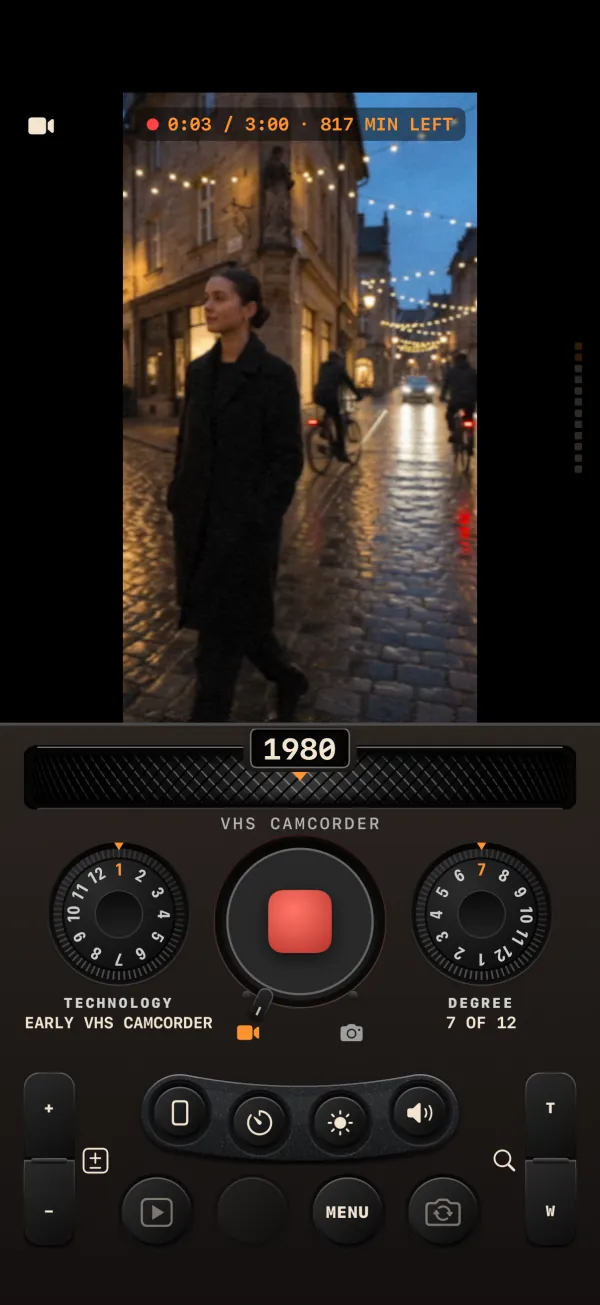
Put the mode lever on the video icon (CINE; the REC cap is red). Then use REC in either of two ways:
- Tap REC (a press shorter than 0.3 seconds) to start. Tap again to pause.
- Press and hold REC to record while you hold it. Let go to pause.
While recording, the REC cap shows a stop square with a pulsing red ring, a red dot shows by the counter, and the VU meter moves on the right edge of the viewfinder if the microphone is allowed.
A pause doesn't end the take. Press REC again and the camera adds a new part to the same take, the way a camcorder adds to the same tape. The parts play back as one continuous take.
The 3:00 tape
A take holds at most 3:00 of footage, counted across all its parts. The counter at the top of the viewfinder reads "m:ss / 3:00".
- At 3:00 recording stops on its own and the counter turns red and reads TAPE FULL. REC won't start again. Press DONE to develop the take, or DISCARD.
- Recording also stops if your iPhone runs low on space: below 300 MB free, or below twice what the take has written so far. The message reads "TAPE FULL: the phone is out of space".
- Next to the counter, "N MIN LEFT" (or "<1 MIN LEFT") tells you how much recording your free storage still holds, at about 12.3 megabits a second, after keeping 300 MB in reserve.
DONE, DEVELOPING, UNDO and DISCARD
As soon as a take exists and is paused, two buttons replace LAST TAKE and MENU in the rear row: DISCARD and DONE.
| Button | What happens |
|---|---|
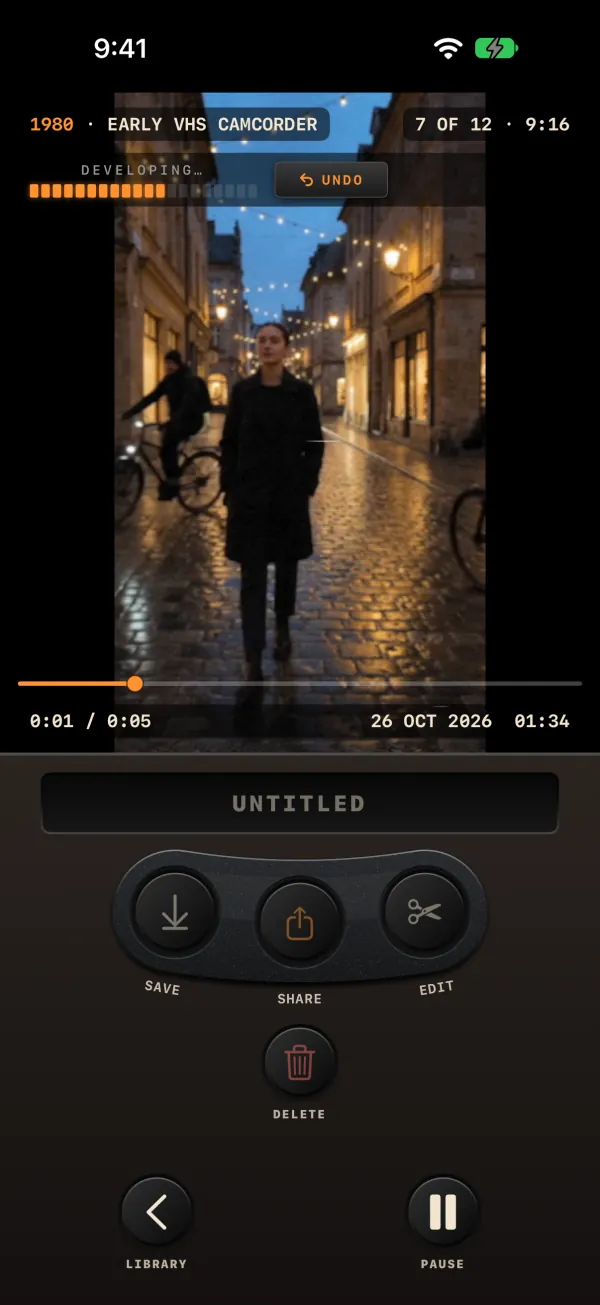
| DONE | Closes the take and develops all its parts into one new clip. The CLIP card opens straight away on the developing preview, with a "DEVELOPING" bar, then "READY". |
| UNDO n | Appears in place of MENU after DONE. It lasts while the clip develops and for 5 seconds after, counting down "UNDO 5…1". It puts the take back in the viewfinder, paused, so you can keep shooting. An UNDO button also sits on the CLIP card next to DELETE while the window is open. |
| DISCARD | Deletes every part of the take. |
While a take is open, LIBRARY, FLIP and FORMAT are locked, so the take stays one camera and one shape from start to finish.
FORMAT
The camera always records a vertical 1080 × 1920 frame. FORMAT chooses a center crop of it. Change it with the FORMAT mini button or MENU › SHOT › FORMAT.
| FORMAT | Approximate size | Good for |
|---|---|---|
| 9:16 | 1080 × 1920 | The full vertical frame; the default. |
| 3:4 | 1080 × 1440 | The near-square shape of film and tape before widescreen, turned upright. |
| 1:1 | 1080 × 1080 | A square. |
| 16:9 | 1080 × 606 | A wide strip. |
In STILL mode FORMAT is disabled ("CINE ONLY"): a photo takes its shape from the STYLE.
Frame rate and file
Every clip is a 24 frames-per-second file, with H.264 video and mono AAC sound. Technologies from decades that ran slower, such as hand-cranked film at 14 or 16 frames a second, are reproduced by holding frames inside the 24 fps file, which gives the familiar jerky walk of early film. Faster historical rates, such as the 29.97 of analog video, are not reproduced: the file stays at 24.
Light and zoom
- LIGHT (sun mini button, or MENU › SHOT › LIGHT) turns on the torch with the rear camera. With the front camera it draws a 28-point white border around the viewfinder to light your face.
- Hold the ZOOM rocker (T or W) to zoom smoothly, or pinch the viewfinder. The range is 1× up to 6× or the camera's maximum, whichever is lower.
- Double-tap the viewfinder, or press FLIP, to switch cameras. That resets zoom to 1× and turns the torch off.
The self-timer
The TIMER mini button cycles OFF → 2 s → 10 s. With a timer set, a glyph shows top right and a press of REC starts a countdown: a large orange digit, one tick a second, then recording starts.
- The timer only arms when no take is open. A press that resumes a paused take starts recording at once.
- It also applies to the volume buttons and Camera Control, and to Siri and Shortcuts.
The hardware buttons
| Button | In CINE | In STILL |
|---|---|---|
| Volume up, volume down, Camera Control | A press toggles: the first starts recording, the next pauses. Letting go does nothing. | The photo is taken when you release the button. |
| Action button | Assign one of the app's Shortcuts actions to it in iOS Settings. See Siri and Shortcuts. | |
The hardware buttons work only when the viewfinder is on screen: not behind the launch intro, the LIBRARY, ABOUT, a CLIP card or the EDITOR. With the MENU or SET CLOCK open they close it and shoot. They are ignored during a self-timer countdown.
Interruptions and recovered takes
If a call comes in, the app goes to the background, the phone runs out of space or the camera stops while you record, the camera closes the take and keeps what it has. The viewfinder tells you why:
- "Recording saved: the call came in"
- "Recording saved: the app went to the background"
- "Recording saved: the tape ran out of space"
- "Recording saved: the camera stopped"
A take saved this way is joined but not developed yet. It shows a RAW badge and develops when you come back, with a "DEVELOPING n CLIP(S)…" row and CANCEL. If something stops a take from being saved at all, the message starts "Recording lost". Takes left behind when the app closed in the middle of DONE wait at the top of the LIBRARY as RECOVERED TAKES. All the messages are listed in Storage and troubleshooting.