IMPORT and the EDITOR
Bring in a video you already have, or cut several clips into one short reel.
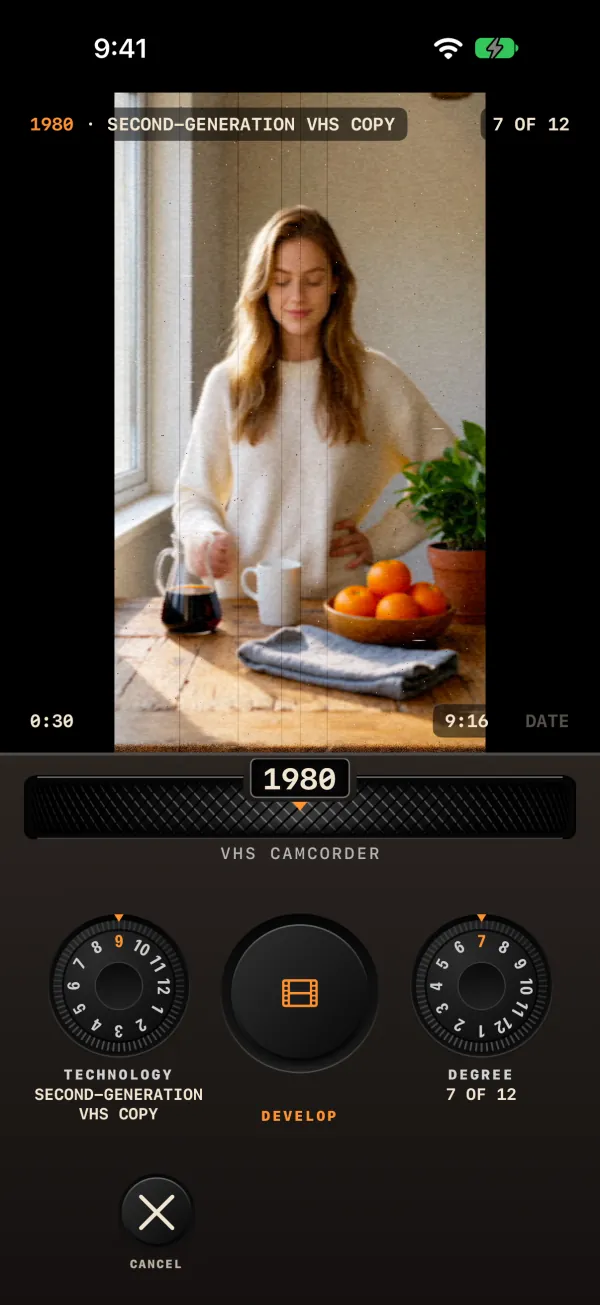
IMPORT: develop a video from your Photos
Open the LIBRARY and press IMPORT in its rear row. The display reads "PICK A VIDEO" / "A video from your photos, developed in a decade." Press CHOOSE and pick a video in the iOS picker. While it loads you see "LOADING VIDEO…" with CANCEL.
The IMPORT screen
| Part | What it does |
|---|---|
| Preview | The video's first frame, with "<decade> · <technology>" and "n OF 12" across the top. |
| FORMAT chip | Cycles 9:16, 3:4, 1:1 and 16:9. It starts on the format closest to the video's shape. |
| DATE chip | Stamps the video's own recording date. Disabled if the file has no date. |
| Trim bar | Only for videos longer than 3:00: "LONGER THAN 3:00: PICK UP TO 3:00" and "m:ss OF 3:00". The selection runs from 0.5 seconds to 3:00. |
| DECADE, TECHNOLOGY, DEGREE | The same controls as HOME. They start from the camera's current decade, technology and DEGREE. FRAME and the date settings come from the camera too. |
| DEVELOP | The big button. Develops the video and becomes STOP while it works. |
| CANCEL | In the rear row: leaves IMPORT. |
What comes out
- A new clip at 24 fps, with its short side at most 1080 pixels. HDR video is converted to standard range.
- The original audio is kept as it is. PERIOD sound isn't applied to imports, whatever the SOUND setting.
- The decade signature is added, following DECADE SIGNATURE.
- The original in Photos is never touched.
- When it is done, the new clip's CLIP card opens.
If something goes wrong you see "Couldn't read this video", "Couldn't develop this video" or "Couldn't start the developer", then "Nothing was added to the library." and CHOOSE ANOTHER. If the app went to the background mid-way: "Developing stopped in the background. Tap DEVELOP to try again."
The EDITOR: cut a short reel
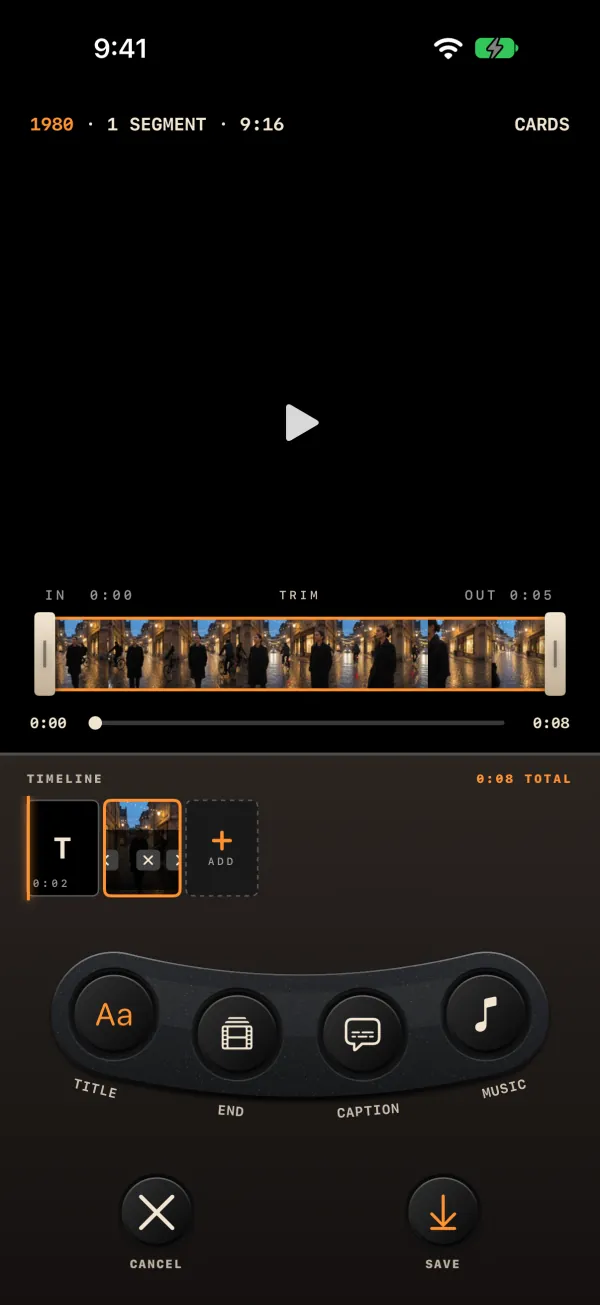
Open a video's CLIP card and press EDIT. The edit plays in the display; tap to play or pause. The top line reads "<decade> · N SEGMENT(S) · <format>" with a status: BUILDING, CARDS, READY, "EXPORT n%", EXPORT FAILED or ERROR.
The timeline
- "TIMELINE" shows the total ("m:ss TOTAL"), and cells sized by duration: T (the title card), your segments, E (the end card) and + ADD.
- + ADD opens "ADD CLIP". It lists only clips in the same format, and no photos. With none, it reads "NO OTHER 9:16 CLIPS" (or your format).
- Select a segment to get ◀ ✕ ▶: move it left, remove it, move it right.
- With a segment selected and no page open, the display shows its TRIM bar: drag the handles, keeping at least 0.5 seconds. With nothing selected it reads "SELECT A SEGMENT".
The four buttons
Each turns orange when it is in use.
| Button | Rows | Defaults |
|---|---|---|
| TITLE | TITLE OFF/ON · TEXT · LENGTH 2s / 3s / 5s | ON; the clip's title; 2s |
| END | END OFF/ON · TEXT · LENGTH 2s / 3s / 5s | OFF; "THE END"; 2s |
| CAPTION | CAPTION OFF/ON · TEXT · PLACE BOTTOM / TOP / CENTER · IN and OUT, "SET FROM THE PLAYHEAD" | OFF; BOTTOM; from 0 to 3 seconds |
| MUSIC | ADD MUSIC ("AN AUDIO FILE FROM YOUR FILES": MP3, M4A, WAV, AIFF). Once added: the file name, "LOOPS TO THE END · FADES OUT", a LEVEL dial OFF / LOW / MID / HIGH, and REMOVE. | LEVEL MID |
Title and end cards are set in the decade's lettering. Music errors read "This file can't be read.", "This track is protected and can't be used." or "This track is shorter than one second."
Limits and saving
- The whole edit, title card, segments and end card together, must fit in 3:00. Over that, SAVE is disabled.
- The export takes the decade, DEGREE, technology and format of the first clip.
- SAVE (orange, in the rear row) exports and becomes STOP while it works. The new clip goes into the LIBRARY and its CLIP card opens. Your original clips stay as they were.
- CANCEL leaves the EDITOR.