LIBRARY, CLIP card, saving and sharing
Everything you shoot stays in the camera's LIBRARY until you save or share it.
The LIBRARY
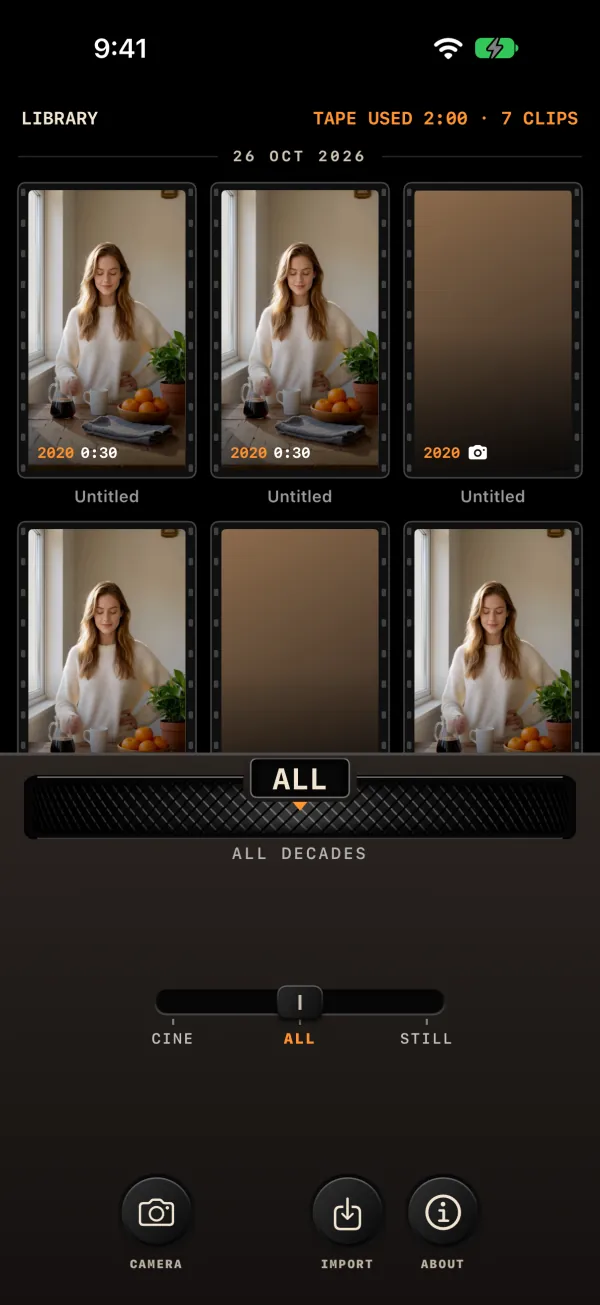
Press the LIBRARY button (play-in-a-box glyph) in the rear row of HOME. The display becomes a contact sheet.
- The top line reads "LIBRARY" and "TAPE USED m:ss · N CLIPS".
- Thumbnails are 3:4 film frames with sprocket holes, grouped by day under headings like "23 OCT 2026", newest first.
- Each cell shows the decade in orange, the duration (or a camera icon for a photo), a RAW badge if it is not developed yet, and its title in the decade's lettering, or "Untitled".
- If RECOVERED TAKES exist, their row comes first, whatever the filters. See Storage and troubleshooting.
An empty library reads "NO CLIPS YET · PRESS REC". A filter with no match reads "NO CLIPS MATCH".
Filtering
| Control | Positions | Filters by |
|---|---|---|
| DECADE wheel | ALL (before 1890), then 1890 … 2030 | Decade. The caption shows the decade's caption or "ALL DECADES". |
| Slot lever | CINE · ALL · STILL (default ALL) | Videos, everything, or photos. |
The rear row in the LIBRARY holds CAMERA (back to the viewfinder), IMPORT and ABOUT. Tap a cell to open its CLIP card.
The CLIP card
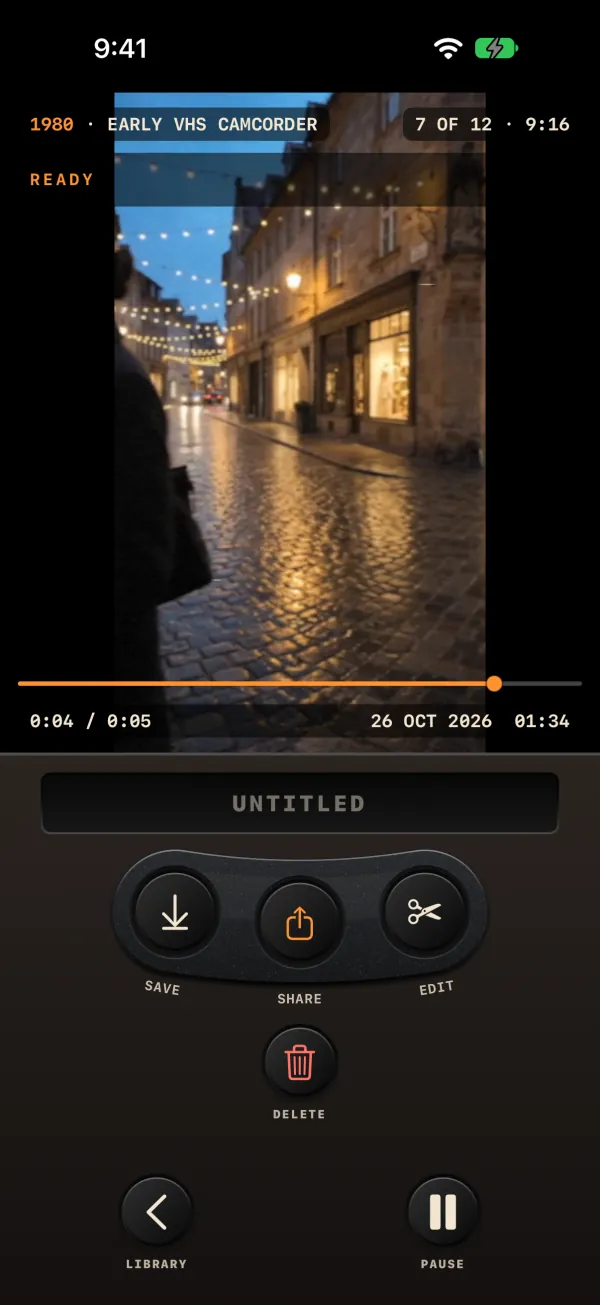
The CLIP card opens after DONE, from LAST TAKE on HOME, or from a LIBRARY cell. The clip or photo fills the display; tap it to play or pause.
| Where | What it shows |
|---|---|
| Top left | Decade and the TECHNOLOGY or STYLE name, for example "1990 · VHS-C FAMILY VIDEO". Older clips with no saved look show the decade caption. |
| Top right | DEGREE and format, for example "7 OF 12 · 9:16". Photos show the style's shape, such as "4:3" or "CIRCULAR". |
| Bottom | An orange scrub bar, the time "0:09 / 0:30" (or "STILL"), and the date and time of shooting, for example "24 OCT 2026 19:36". |
| While developing | A "DEVELOPING" bar with UNDO, then "READY". |
Under the display is an engraved title plate. Tap it and type a title (it is set in capitals); the border flashes orange when it is saved. Empty, it reads "UNTITLED".
The buttons
| Button | What it does |
|---|---|
| SAVE | Saves to your photo library and turns into SAVED. Photos are saved as they are. Videos first get the 2-second end card, with a "PREPARING…" bar and CANCEL. The first time, iOS asks for permission to add to Photos. |
| SHARE | Opens the share card (below). |
| EDIT | Videos only. Opens the EDITOR. |
| DELETE | Moves the clip to the trash at once, with no alert. A "DELETED · UNDO n" bar gives you 5 seconds to take it back. |
| UNDO | Only while DONE's undo window is open: puts the take back in the viewfinder, paused. |
| LIBRARY / PLAY-PAUSE | The rear row: back to the LIBRARY, and play or pause. |
SAVE, SHARE and EDIT stay disabled until developing is done ("Available when developing is done"). SAVE reports "Saved to your photo library", "Couldn't add the end card: saved without it" or "Photo library access denied".
The share card
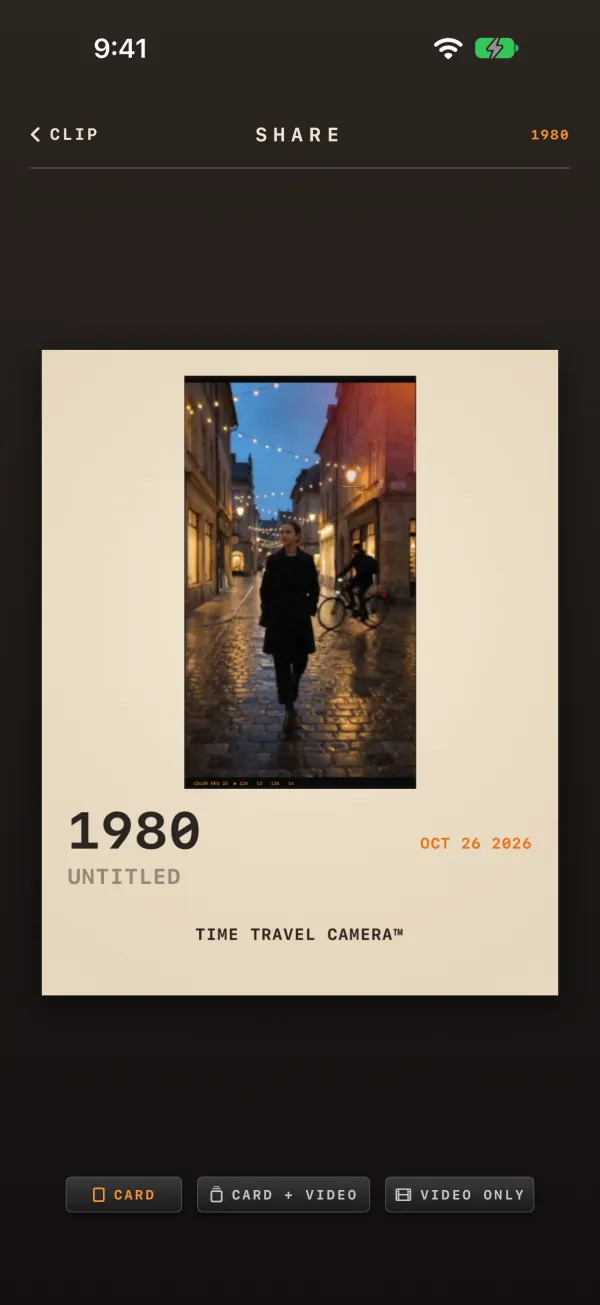
SHARE opens a page headed "SHARE" with the decade, and a CLIP button to go back. It shows a cream print, 1080 × 1350 pixels, made from your clip:
- the picture, with the decade's period frame (unless FRAME was already burned in);
- the year in large type and the shooting date in orange, in your DATE FORMAT;
- the title, or "UNTITLED";
- "TIME TRAVEL CAMERA™" in the decade's lettering.
While it renders the display reads "PRINTING…". Then choose what to send:
| Button | Sends |
|---|---|
| CARD | The print alone, as a PNG named like "Time Travel Camera 1990 – Title.png". |
| CARD + VIDEO or CARD + PHOTO | The print and the clip. |
| VIDEO ONLY or PHOTO ONLY | The clip alone. |
Video options prepare the file with its end card first ("PREPARING…", with CANCEL), then open the iOS share sheet.
The end card
Every video that leaves the app, through SAVE, VIDEO ONLY or CARD + VIDEO, ends with a 2-second card: "MADE WITH", TIME TRAVEL CAMERA™ in the decade's lettering, and "Free on the App Store". It is rendered through the clip's own look, grain and color included, and it is silent.
- It doesn't count toward the 3:00 limit.
- It is never added to the copy inside the app, to photos, to RAW clips, or to a file that already has one.
- In the free version it is always added.
- If it can't be added, the video is saved without it and the app says "Couldn't add the end card".
The decade signature
The signature is a small cream badge in the bottom-right corner on the last 12 frames of a clip: half a second at 24 fps. It shows the year above "TIME TRAVEL CAMERA™". It goes on every developed clip, on imports and on EDITOR exports. Clips joined after an interruption and not yet developed carry none.
Switch it off with MENU › LOOK › DECADE SIGNATURE (default ON). That switch controls only this badge, not the end card.