Getting started: first launch and permissions
What happens the first time you open the camera, and every time after.
What you need
| Requirement | Details |
|---|---|
| Device | iPhone only. The app runs in portrait, full screen. |
| System | iOS 17.2 or later. |
| Recommended | iPhone 12 or newer. On older iPhones the app still runs, and the top of ABOUT reads "Performance is not guaranteed on this iPhone." Nothing else changes. |
| Account or network | None. The app has no account, no servers and no analytics. Nothing leaves your phone unless you save or share it. |
On the home screen the app is called "Time Travel Camera".
The first launch: four pages and SET UP
The first time you open the app you get a short hands-on intro instead of the camera. A header shows the name, a page counter "1 / 4" and SKIP. At the bottom are page dots and a NEXT button. The intro never uses your real camera: it plays a bundled sample clip, so you can try the controls before granting anything.
| Page | What you see | What to do |
|---|---|---|
| 1 | A viewfinder with a blinking REC light and the real DECADE wheel. The wheel runs a little trailer: it starts at 2020 and steps back on its own, one decade every 1.2 seconds, to 1970. | Touch the wheel or the viewfinder to take over. The line "Try it. Turn the wheel." changes to "You're in <year>." after three clicks. NEXT appears then, or 4 seconds after the invite. |
| 2 · HOLD OR TAP REC | A REC button and a 12-step DEGREE dial set to 7. The display reads "0:00 / 3:00". | Tap REC to start and stop, or hold it. Turn DEGREE and watch the sample change. |
| 3 · FILM OR PHOTO | The mode lever under REC. | Flip it. REC turns chrome, the left dial is relabeled STYLE, and the display reads "STILL". |
| 4 · ASK SIRI | A card with a sample request: "Hey Siri, record a 1990 clip with Time Travel Camera." | Read it and tap the button, which here reads SET UP. See Siri and Shortcuts. |
SKIP always jumps straight to SET UP. The intro only closes from SET UP, with START SHOOTING.
The SET UP page and permissions
SET UP explains, in one line, that "The camera needs two things to work. Nothing leaves your phone." Each row has an ALLOW button that turns into a lit OK once iOS has your answer.
| Permission | When it is asked | What happens without it |
|---|---|---|
| Camera | On SET UP with ALLOW. If you haven't answered yet, iOS asks again when the camera starts. | START SHOOTING stays disabled. If you deny it, the app shows a CAMERA ACCESS screen (see below). |
| Microphone | On SET UP with ALLOW, and again when the camera starts if still undecided. | You can still shoot. There is no VU meter, and Siri and Shortcuts captures won't start on their own. |
| Photos (add only) | The first time you tap SAVE. Before the iOS prompt, a one-time line warns you: "The Time Travel Camera will ask to add this clip to your Photos." Tap OK. | Clips stay in the app's LIBRARY. SAVE reports "Photo library access denied". |
The photo permission the app asks for is to add to your library: that is all SAVE needs.
If you said no to the camera
The display shows CAMERA ACCESS and the line "The Time Travel Camera can't see without the camera." Two buttons sit under it:
- OPEN SETTINGS opens the app's page in iOS Settings, where you can switch the camera on.
- REPLAY INTRO runs the four intro pages again.
The launch intro (every launch after the first)
From the second launch on, a cold start opens on a strip of all 15 decades: the same sample frame cut into 15 vertical slices, from 1890 on the left to 2030 on the right, with "TIME TRAVEL CAMERA™" across it. The decade of the day gets the widest slice, and the camera opens on that decade.
- It stays at least 1.2 seconds and at most 2.5 seconds, then fades out in 0.3 seconds. With Reduce Motion it cuts instead of fading.
- A tap skips it.
- It doesn't appear on the very first launch, when you come back from the background, or when Siri or a Shortcut is waiting. A link, a Siri request, a recording or a self-timer cuts it short.
Replaying the intro
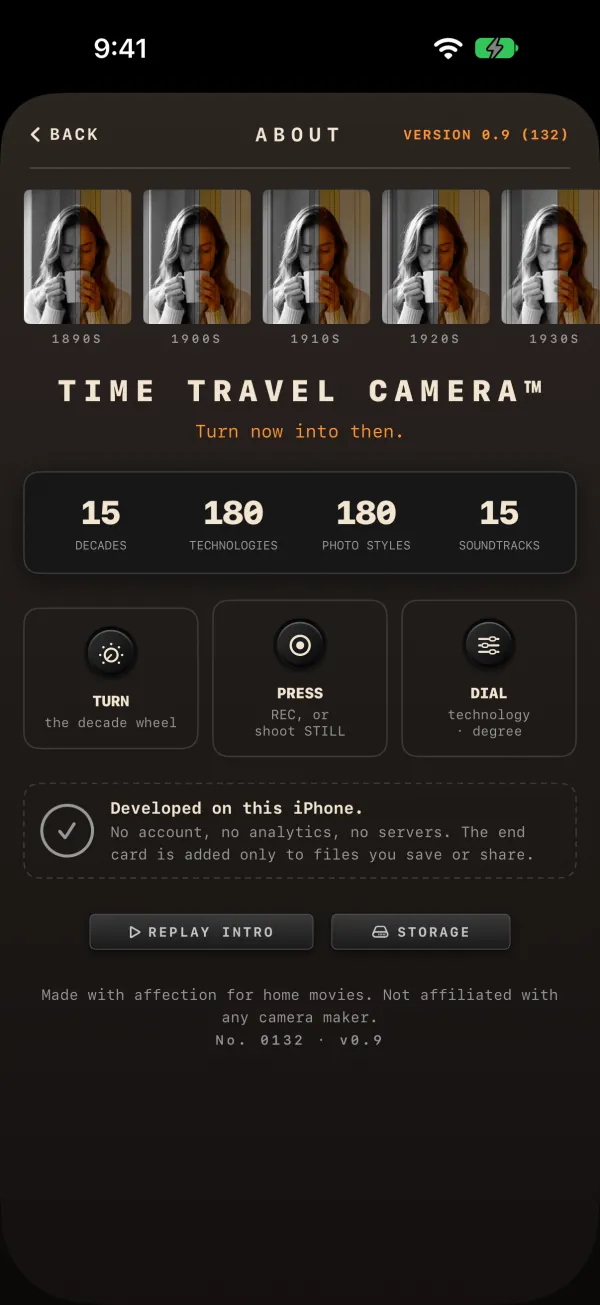
You can run the four intro pages again at any time from MENU › SYSTEM › REPLAY INTRO, from ABOUT › REPLAY INTRO, or from the CAMERA ACCESS screen.